

Change SRS settings and reuse presets
Each SRS set has its own settings. A preset lets you copy a configuration into another set without entering every value again.
For the global Review Ahead Limit and Next Day Starts At controls, use Review settings.
Change one set
- Open SRS and select the set.
- Tap the gear button to open SRS Set Settings.
- Choose a settings section from the table below.
- Make the change and tap Save Change.
- Check the success message before returning to the set.
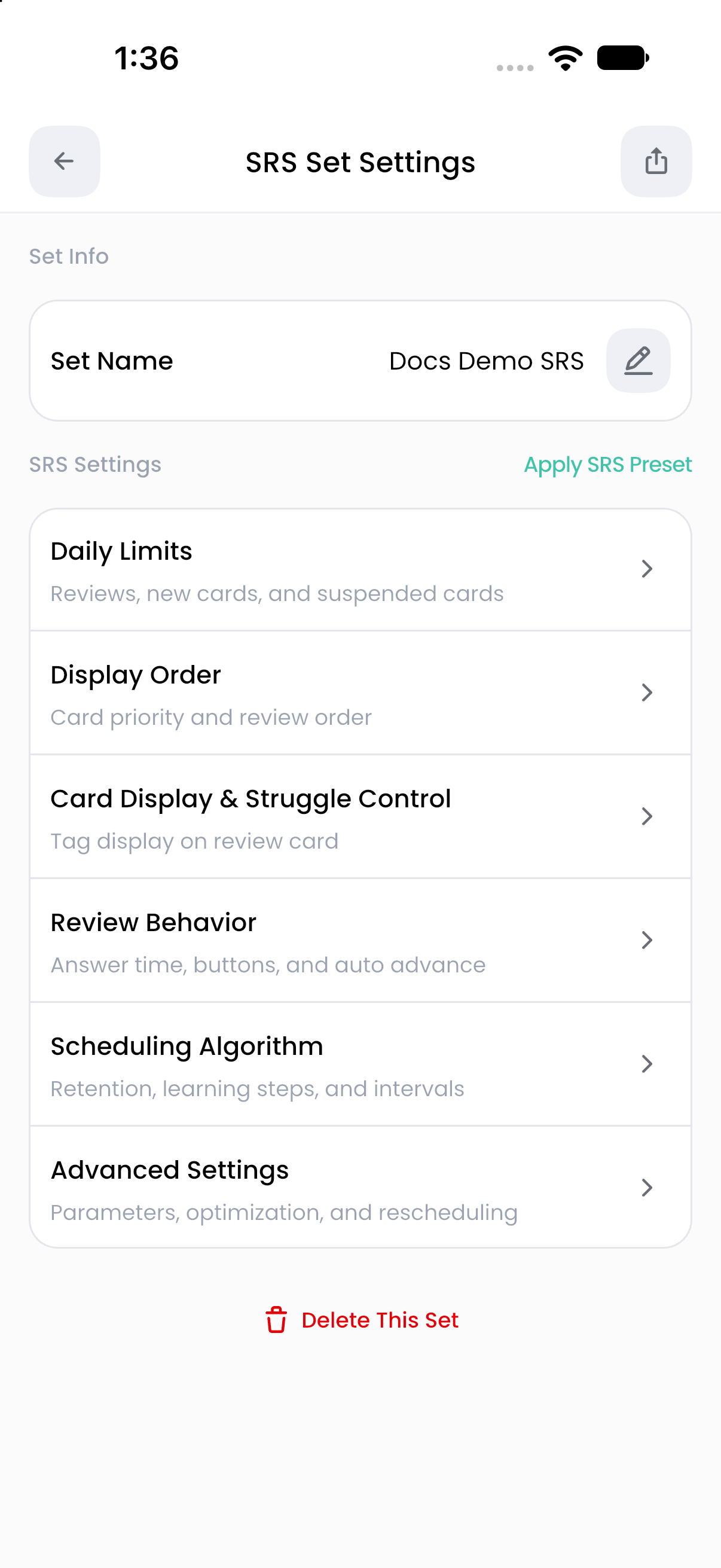
Reset to Default changes the current settings draft. Save the change to persist the reset. If you leave an edited page and choose Discard, the unsaved changes are lost.
Apply a preset to an existing set
- Open SRS Set Settings.
- Tap Apply SRS Preset.
- Select the settings source.
- Read the Apply SRS Settings? confirmation. Applying replaces the set's current settings with the selected source.
- Confirm, then inspect the settings that matter for your next session.
Applying a preset copies settings; it is not a live subscription to future edits of that preset. A preset also cannot supply a specific linked-deck order because it has no decks of its own.
Create or edit a preset
- Open Settings → Presets → SRS Presets.
- Choose Create SRS Preset, or open a custom preset to edit it.
- Give it a distinct name such as Light daily workload.
- Configure its settings sections. You can copy a starting configuration through Import SRS Settings.
- For a new preset, return to its main page and tap Create SRS Preset. When editing an existing preset, use Save Change in each changed settings section.
The system default preset is View only. Create a custom preset to change those values. Deleting a preset removes the reusable configuration; it is not a command to delete the sets where you previously copied its settings.
Choose settings with a clear purpose
For less daily work, first consider the number of new cards you introduce. For how often established cards return, inspect Desired Retention and Maximum Interval. For cards returning within a session, inspect learning steps and Review Ahead Limit.
Start with Daily limits and Scheduling. Advanced users can consult FSRS parameters.