

Getting started
Decks are the starting point for studying in Flashnerd. Each deck holds your cards for Flashcard and Matching practice, and you can link it to an SRS set for scheduled reviews. Let’s create your first deck and add some cards.
1. Create a deck
Each deck has one template, which defines the fields shared by its cards, their types, order, sides, and default settings. A field is a named place for content, such as Term or Definition. Each card supplies its own content for those fields.
Choosing a template preset copies a starting structure into your new deck. You can review and customize that deck’s template in Template Info (3/3). See Templates and presets for examples and editing guidance.
- Open Home and use the create control to open Create.
- Choose Create Deck.
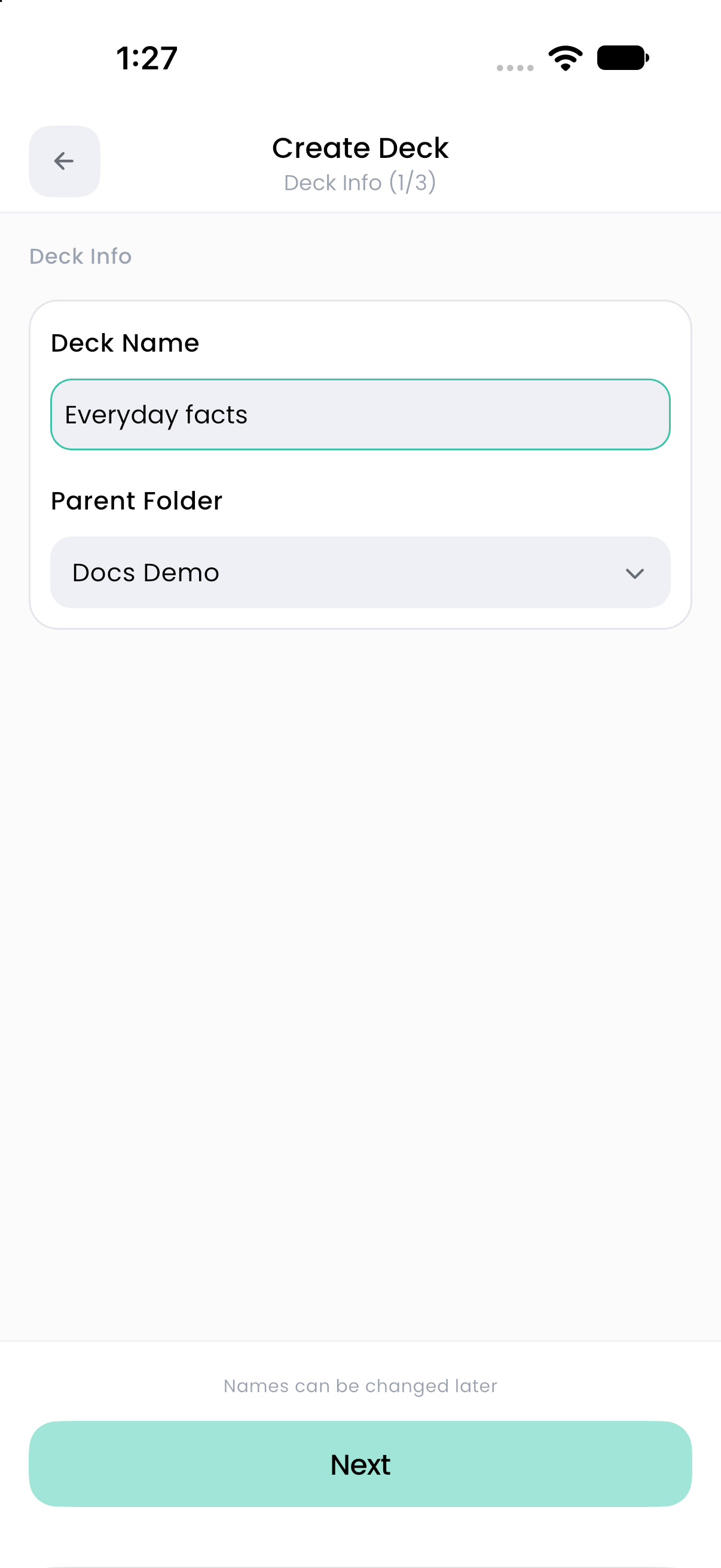
- In Deck Info (1/3), enter
Everyday factsas the Deck Name. Choose a parent folder if you want one, then tap Next. - In Select Preset (2/3), choose Text under Basic. This preset supplies two text fields: Term on Front for the question and Definition on Back for the answer in this walkthrough. Tap Next.
- In Template Info (3/3), check the field names and their side badges. Keep at least one front field and one back field, then tap Create Deck.
The new deck opens at Deck Detail. It is normal for Study Now to be unavailable until you add a card.
2. Add a card
- Tap Add Card, then Enter manually.
- Enter
What is the largest planet in our solar system?in Term, the front field. - Enter
Jupiterin Definition, the back field. - Check Card Preview. Use Full Preview to inspect the card and switch between Show Back and Show Front.
- Tap Add Card to save it to the deck.
Repeat with a few more facts. Field names can vary with the preset you chose; the Front and Back badges tell you where each field appears. See the illustrated card editor guide for the same example.
3. Practice
- From Deck Detail, tap Study Now.
- Choose Flashcard.
- Read the question and try to recall the answer before revealing it.
- Tap Show Answer, then tap the green check (Pass) if you recalled the answer or the red cross (Failed) if you did not.
- Continue to Study Completed! and review the session summary. Scroll to Review Answers to inspect your answers or use Return to Deck to continue editing.
This is a practice session. To have Flashnerd choose when these cards are due again, create an SRS set.