

Start spaced repetition
Use an SRS set when you want Flashnerd to decide when to show a card again. Your answers update each card's schedule. Use the practice modes in Home when you want an unscheduled session instead.
How spaced repetition works
Spaced repetition spreads reviews over time. Recall can fade between reviews; revisiting a card helps reinforce what you learned. As you recall it successfully, you can often wait longer before the next review.
Flashnerd uses FSRS to update each card's schedule from its review history, your answer grade, and the set's settings. Try to recall the answer, reveal it, then grade honestly. If you forget, choose Again; the card can return sooner through relearning steps. Actual intervals vary and do not always increase.

See Answer grades and Scheduling settings.
Before you begin
Sign in and create a deck containing a few cards. If you have not done that yet, follow Your first study session.
Decks and SRS sets
Linking a deck does not create a separate copy of its cards. Editing a linked card changes the same card you see in Home. A deck can belong to only one SRS set.
For example, put your Travel vocabulary and Useful sentences decks in a Travel practice set. They retain their individual card templates but use the set's SRS settings.
Create a set
- Open SRS and tap the add button.
- Choose Create Set.
- In Set Info (1/2), enter a Set Name.
- Choose a Parent Set Folder, or leave None selected to place the set at the top level, SRS Home.
- Choose SRS Settings. Start with Default unless you already have a preset you want to use.
- Tap Next.
- In Deck Info (2/2), tap Add Deck, select your decks, and confirm the selection. Folders help you find decks; only the decks are linked.
- Review the selected deck list and tap Create SRS Set.
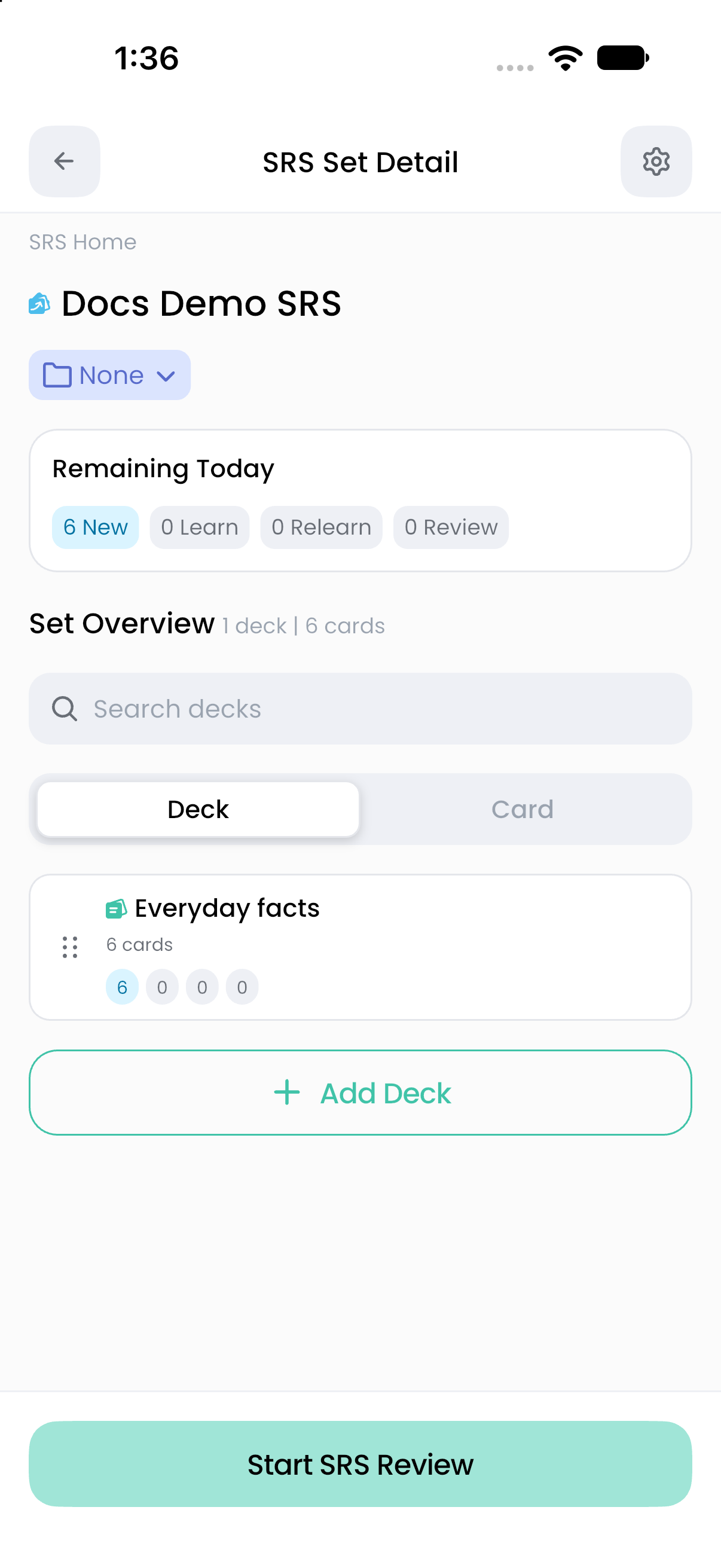
The new set appears in SRS. Open it to see its decks and cards, then tap Start SRS Review.
It may already be assigned to another set. Use the existing set's linked-deck move action to transfer it while retaining progress. Unlinking instead removes its associated SRS statistics. Read Manage sets and linked decks before changing membership.
Understand Remaining Today
Remaining Today reflects cards currently available under the set's schedule and daily limits. It is not the total number of cards you own. A large deck can have a small remaining count because cards are due later, new-card limits have been reached, or some cards are disabled.
The default settings introduce up to 15 new cards per study day, allow 150 daily review admissions, and include 0 suspended cards. Existing presets or imported settings may use different values. See Daily limits.
Your first review
Try to recall the answer before tapping Show Answer. Then choose the grade that describes your recall. Flashnerd records the answer and schedules the card again; a short learning step can bring it back within the same session.
Continue with Review a set or folder for answer buttons, undo, and session completion.