

Find cards with Search
The app's Search tab finds cards in your local study library. Search on this documentation website finds help articles instead; the two search boxes have different purposes.
Find a phrase
- Open Search in the bottom navigation.
- Type into Search cards, for example
photosynthesis. - Wait for the result count and cards to update.
- Open a result to inspect or edit the card.
The query is a literal phrase contained in searchable card text. For example, cell membrane looks for that phrase, rather than two unrelated words anywhere in a card. % and _ are literal characters, not wildcard commands. Use a shorter phrase if your first query finds nothing.
Text search does not transcribe audio or read text inside an image. Rich-text content is searchable, but image, audio, and image-occlusion fields do not contribute image/audio contents to keyword matching.
With no query and no filters, Search shows its introductory state rather than listing every card.
Combine filters
- Tap the filter control beside Search cards to open Advanced Search.
- Configure Deck Filter and, if needed, SRS Filter.
- Confirm selections inside each picker.
- Tap Apply Filter to return to Search with the selected filters.
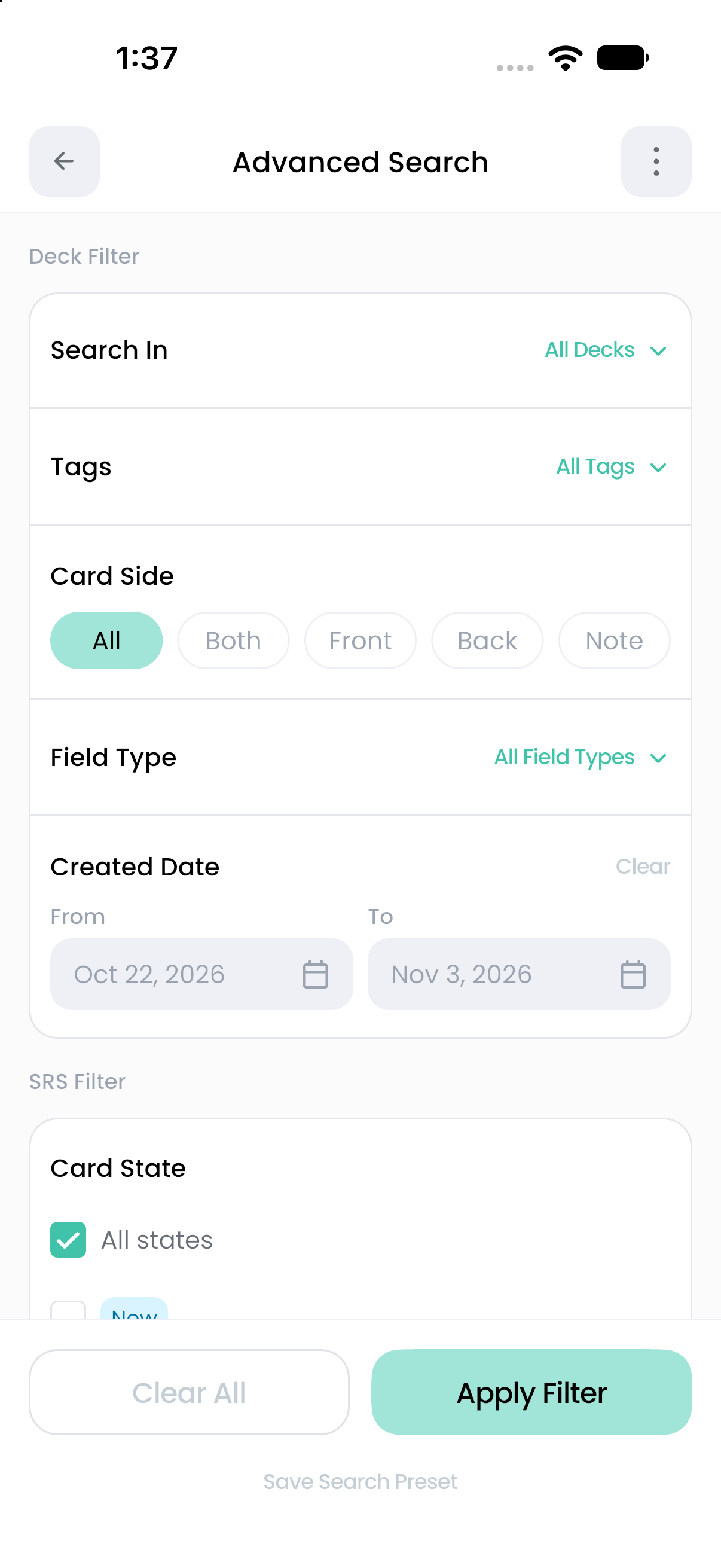
Filters can work without a text query. For example, selecting a deck and the Image field type can find cards using that field type without trying to match text inside images.
Different filter categories work together. Selecting a deck, a tag, and a date range requires a card to satisfy all three categories. Within the tag selection, matching any selected tag is enough.
Front and Both are distinct
Both is a template side of its own. A Front filter does not automatically include fields configured as Both. Select both choices if you want to search both kinds of fields.
With no query, side/type filters inspect the deck's template definitions; they do not require every matching field to contain a value. With a query, the matching text must be in a field that satisfies the selected side/type constraints.
SRS-only filters
Selecting an SRS state or due-date bound restricts results to cards linked to SRS. It can therefore exclude a perfectly valid Home card that has never been added to a set.
State choices combine as alternatives. New, Learn, Relearn, Review, and Struggle match active cards. Choose Suspended or Disabled explicitly to include those availability categories. Selecting Review and Struggle means active Review cards or active Struggle cards; it does not mean only cards that satisfy both.
SRS due-date filtering respects the review-day configuration. Created Date is about when the card was created, not when it was reviewed.
Clear or retain a search
To remove filters, open Advanced Search, tap Clear All, then Apply Filter. Clear the text query separately if you also want to remove it.
Leaving the Search bottom tab resets the current search session. Save useful filter combinations as search presets so they are easy to apply again.
If a card is missing
Clear the filters and search a short phrase from an ordinary text field first. Then add filters one at a time. Check whether the text is on Both rather than Front, whether an SRS-only filter excludes the card, and whether you are expecting image/audio contents to be searchable.
After editing a card, returning to Search refreshes the results. A card may leave the list because it no longer matches the current filter; that does not mean it was deleted.