

Import cards from CSV
CSV import turns rows from a spreadsheet into cards in an existing deck. Each column is mapped to a field in that deck's template. Images and audio are assigned separately in the import screen.
Prepare a file
Create the destination deck and check its template first. For a simple front/back deck, export a UTF-8 CSV like this:
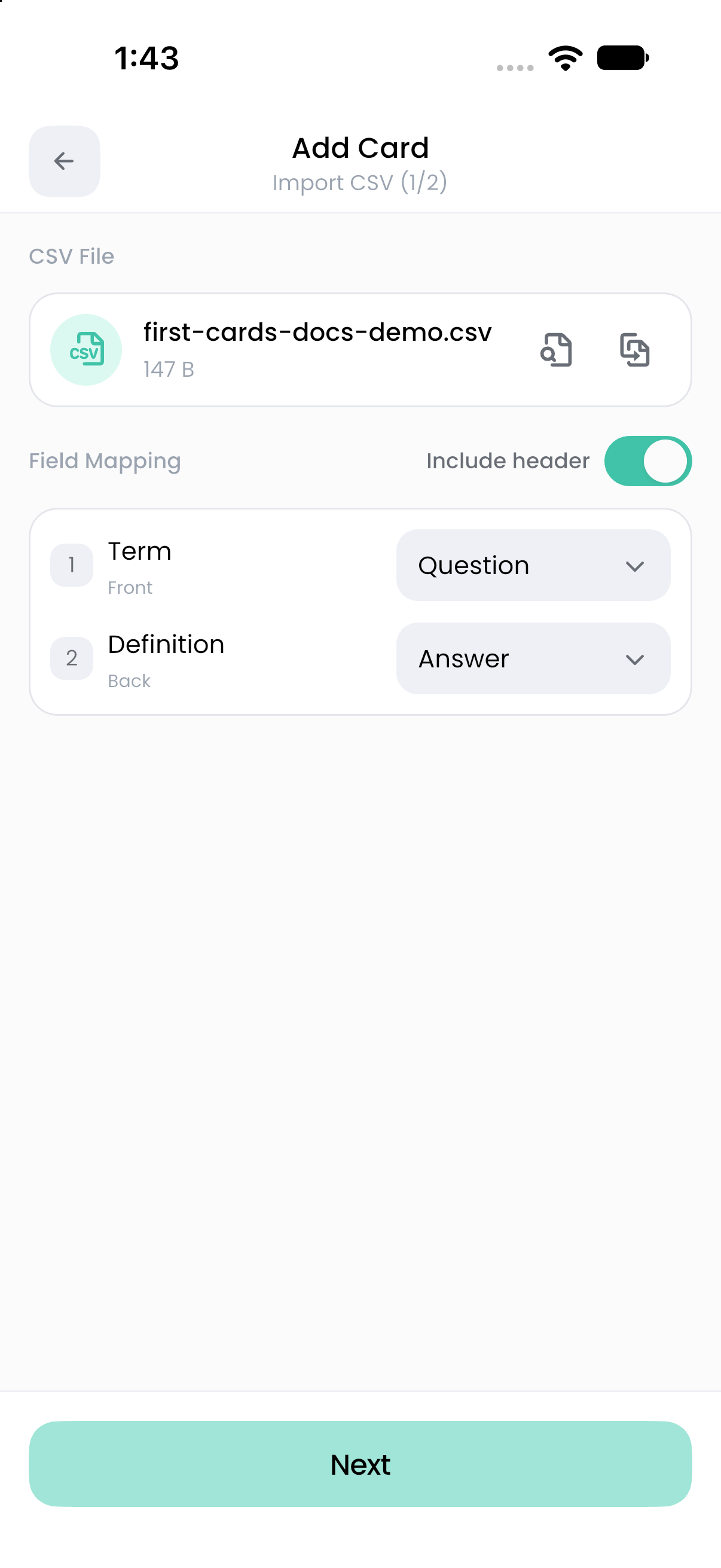
Download this three-card example CSV. When importing it, enable Include header and map Question to the front field and Answer to the back field.
Quote cells containing commas, quotation marks, or line breaks using your spreadsheet's CSV exporter. A header row is optional, but it makes mapping easier.
Each CSV import takes at most 999 data rows. Split larger files into separate imports. This is different from the overall limit of 20,000 cards in a deck.
Map columns and import
- Open the destination deck and tap Add Card.
- Choose the CSV import option to open Import CSV (1/2).
- Select your file under CSV File.
- In Field Mapping, turn on Include header if the first row contains column names. Despite the label, this treats that row as a header and excludes it from the cards.
- For each template field, open Select CSV Column and choose the matching column. Choose None to leave an unmapped field blank.
- Add images or audio for media fields if needed, then tap Next.
- On Review card (2/2), inspect the cards. Edit mistakes and remove rows you do not want.
- Tap Import Cards with the displayed count.
The reviewed cards are added to the destination deck. Going to the review screen does not save them yet. If you leave and confirm Discard changes?, changes made in that import flow are lost.
Associate images and audio
For an image field, use Upload images and arrange the selected images against the card slots. Hold and drag to reorder them when needed. Check the first, middle, and last card to confirm that images align with the correct rows.
For an audio field, use Upload audio files or Add Audio for the corresponding card. Replace an incorrect assignment before continuing. A CSV filename or URL alone does not attach a local media file.
Image and audio files are limited to 10 MiB each. Resolve oversize or invalid-file messages before importing. Photo selection may require access in your device settings.
Check the result
Open a few imported cards and preview both sides. If a question appeared as a card, revisit the header setting on your next import. If fields are swapped, correct the column mapping. For a large file, confirm whether the 999-card warning appeared and import the remaining rows separately.
Before importing another copy of the same rows, remember that CSV is an add-cards workflow; it is not a matching-ID update tool. For updates that preserve card identity, use the Flashnerd file workflow.
See field types and import troubleshooting.