

Organize decks and folders
Home → My Decks is your library. Decks hold cards; folders organize decks and other folders. The SRS tab has its own organization for scheduled study.
Create a deck
- Open Create from Home and choose Create Deck.
- Enter a Deck Name and choose its Parent Folder. Tap Next.
- Choose a preset under Presets (Default) or Presets (Custom) and tap Next.
- Review Template Info, then tap Create Deck.
Deck names must be unique within their containing folder. You can use the same name in different folders. A new deck starts without cards; open Add Card to enter, import, or generate them.
For a worked example, follow Your first study session.
Create and navigate folders
Choose Create Folder from the Create sheet. Set the folder name and parent, then use the creation action. Use the arrow beside a folder to expand or collapse it.
A folder's three-dot menu provides actions for editing it, creating a subfolder or deck, expanding/collapsing its children, and exporting it. Creating a deck from this menu preselects that folder.
Folders can have up to six ancestor folders. If a destination would make a folder or its contents too deeply nested, choose a shallower parent.
Rename or move a deck
To rename a deck, open it, tap the gear button, and edit Deck Name in Deck Setting. Save your change.
To move a deck:
- Open Deck Detail and tap its parent-folder breadcrumb.
- Select a destination in the Parent Folder picker. Search if necessary.
- Tap Confirm.
The deck remains the same deck, with the same cards. If another deck in the destination already has its name, rename one of them before moving it.
To rename or move a folder, choose its edit action from the three-dot menu. Use the name-edit control or select a new Parent Folder and confirm. The folder's contents move with it.
Find a deck
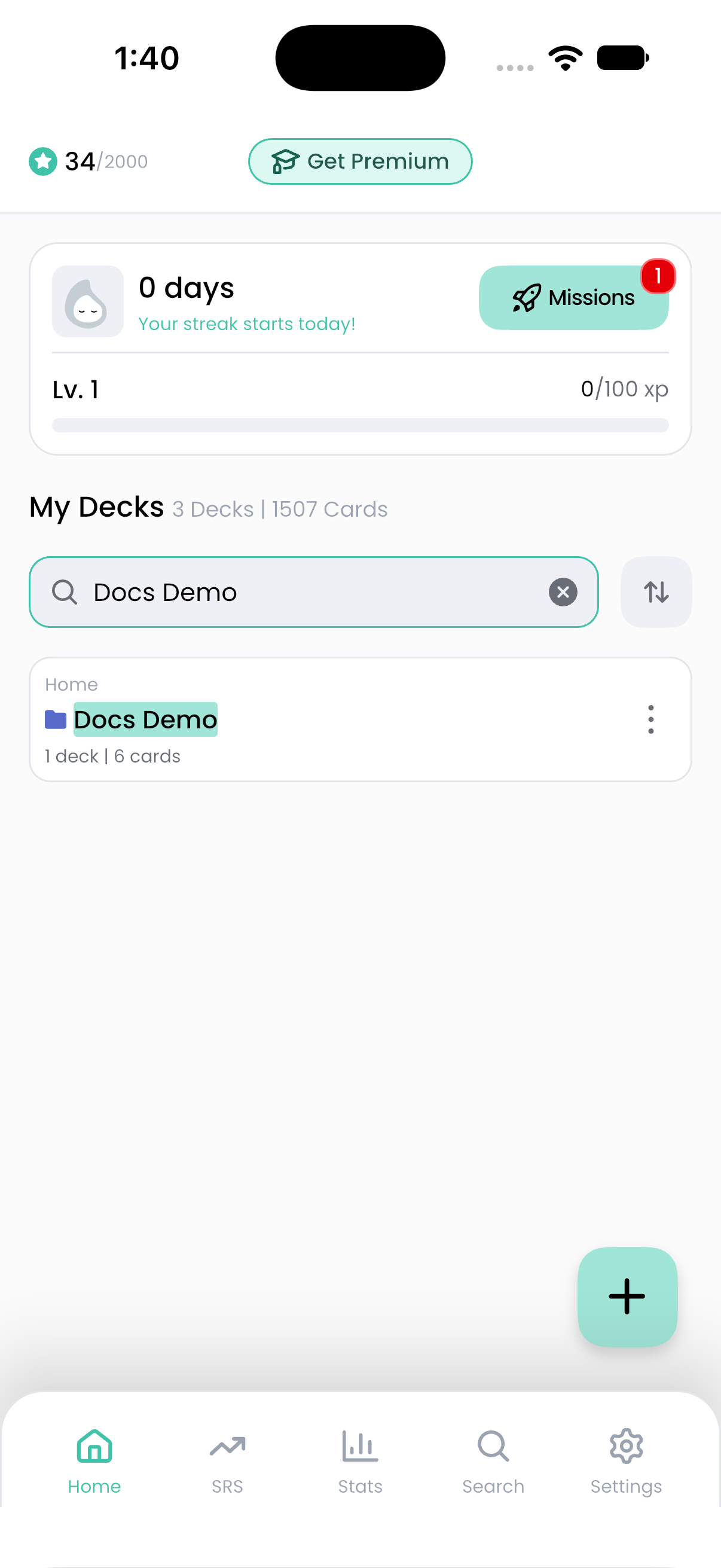
Use Search decks in Home for library names. Sort By changes the displayed order. To find content inside cards or combine filters, use the main Search tab instead.
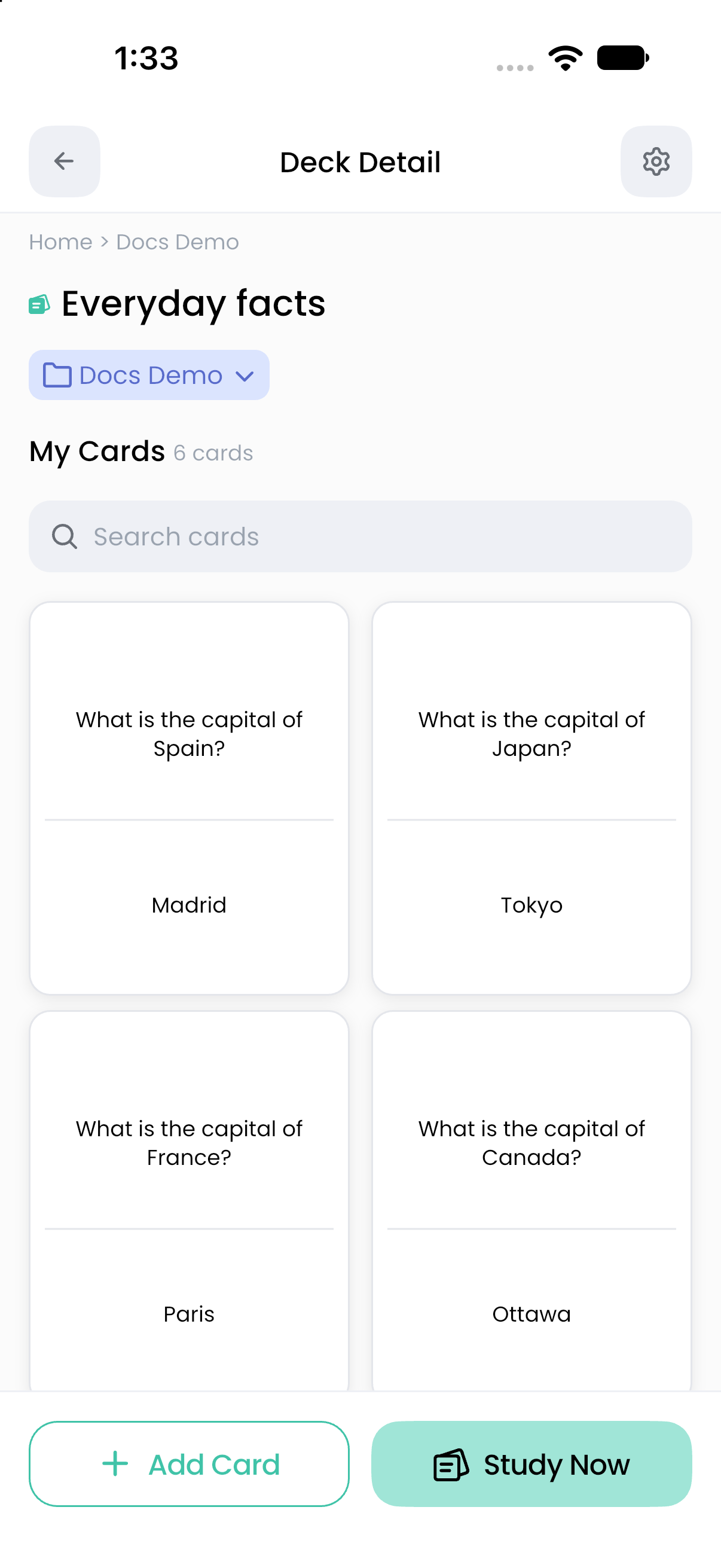
Within a deck, Search cards narrows the card list without creating a new deck or changing the saved cards.
Delete carefully
Delete This Deck is available in Deck Setting. The confirmation permanently removes the deck and all its cards. Deleting a folder permanently removes its contents, including nested folders and decks.
Export a backup first if you may need the content again. A linked SRS set uses the original cards: deleting base cards or decks also affects their SRS data. Deleting content is different from unlinking a deck from an SRS set.
See Backups and exports and Start using SRS.