

Review credits, missions, and XP
Free-plan study uses review credits. Pro-plan reviews are unmetered. Check the active plan in Settings → Account Info.
Review credits pay for study sessions; XP tracks level progress; AI uses a separate weekly allowance. These values are not interchangeable.
Earn and claim mission rewards
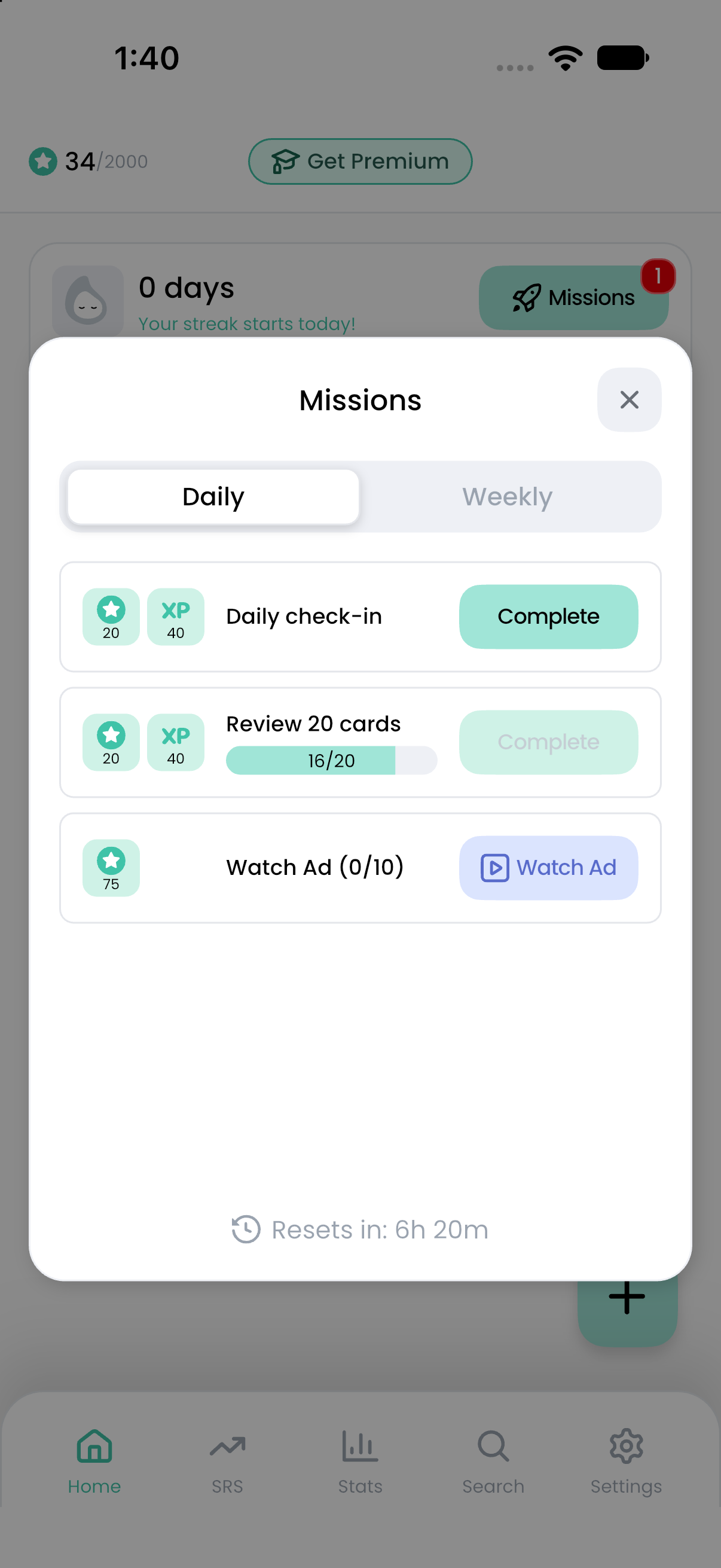
- Open Home and tap Missions in the progress card.
- Choose Daily or Weekly.
- Read the requirement and displayed reward for each mission, such as Daily check-in or reviewing a number of cards.
- When the mission is ready, tap Complete to claim it.
- Confirm that the state changes to Claimed and check the updated progress.
The progress card shows your level, XP toward the next level, and consecutive check-ins. A check-in streak follows the mission check-in rules; it is not a count of all days on which you opened a card.
Use the reward values displayed in the app. Mission requirements, credit rewards, ad quotas, and cooldowns are supplied by the service and can change. Pro accounts do not receive mission review credits and do not show rewarded-ad controls.
Watch an ad for review credits
For eligible Free accounts, Watch Ad appears in the Daily missions view and in Not Enough Review Credits dialogs. It is a repeatable earning opportunity, rather than a mission that you claim once.
- Connect to the internet and open Missions → Daily, or the insufficient-credit dialog.
- Read the current reward, quota, or cooldown.
- Tap Watch Ad when available.
- Watch the full ad and close it when permitted.
- Wait for the reward to be verified and the balance to update.
Closing early or an ad failing to load does not earn credits. A completed video is followed by verification; the balance may not change immediately.
If the message says Your reward is still being verified, wait and return to the app later. If it says the reward was confirmed but the balance needs updating, open Settings → Account Info → Sync Status → Sync Now. Repeatedly tapping another ad is not a substitute for verification.
Reset times
For example, midnight UTC is 08:00 in Taiwan. The app's Resets in countdown helps you follow the active period.
The Next Day Starts At study setting controls SRS daily limits and study-day statistics. Changing it does not shift missions or the ad quota.
Resolve credit problems
- Not enough credits: claim eligible mission rewards or use an available rewarded ad before continuing.
- Cooldown or daily limit: wait for the time shown or the next UTC quota reset.
- Ad unavailable: check the connection and retry later; availability is not guaranteed.
- Balance seems outdated: use Sync Now, then reopen the relevant view.
- AI usage limit reached: check AI Settings; earning review credits does not restore AI allowance.
For persistent issues, contact support with the approximate event time, your device, the message displayed, and the steps you tried. Do not send passwords or sign-in tokens.