

Review and refine generated cards
Generated cards are editable drafts. Use follow-up prompts to improve a result, and inspect the version you want before saving it.
Review a result
- Wait until generation completes, fails, or is stopped. Result tiles cannot be opened while generation is active.
- Tap Review cards, or the Version you want when several results are available.
- Open individual cards to correct text, adjust field content, or change card settings. Use the card information controls to manage tags.
- Remove draft cards you do not want to keep.
- Check the remaining count, then tap Add Cards.
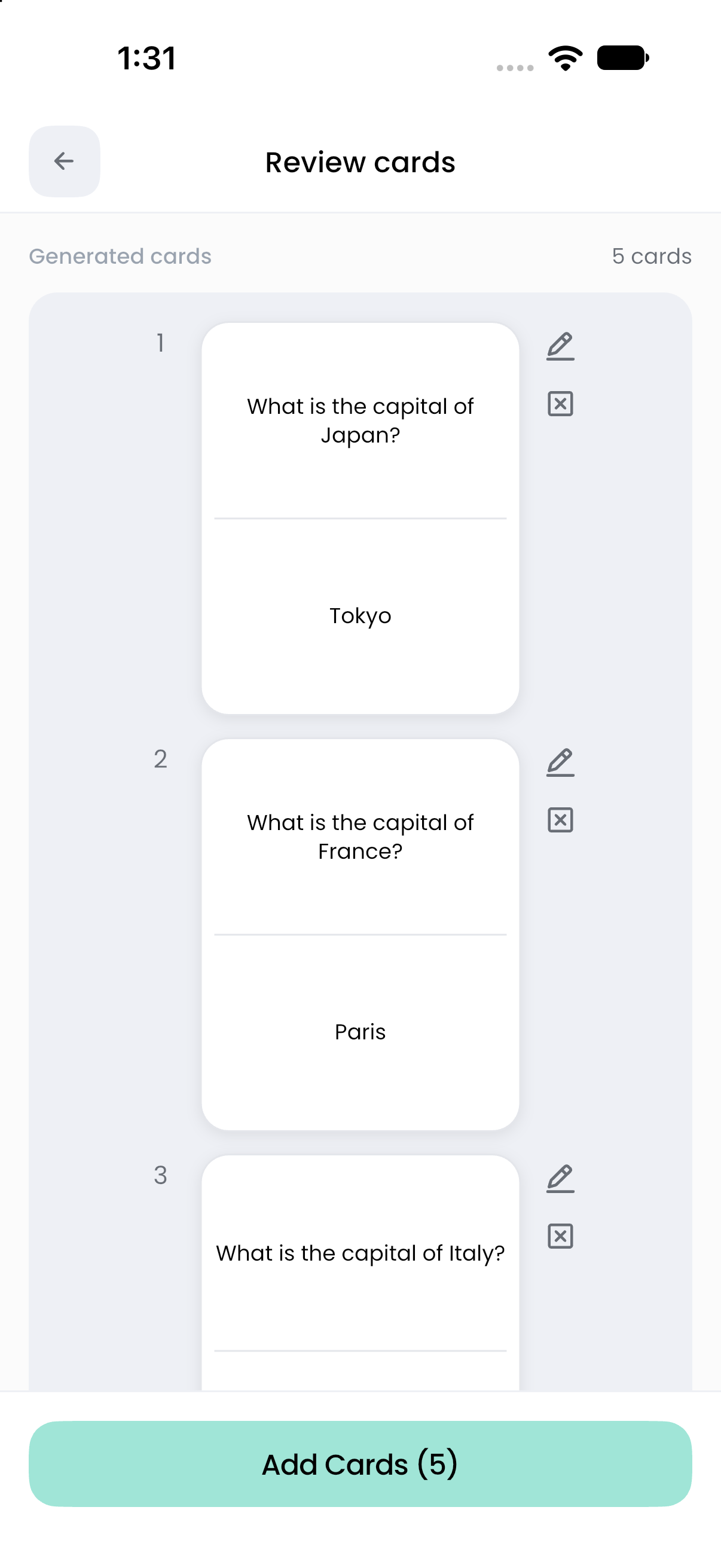
The saved cards are the current contents of the version being reviewed, including your edits. Adding one result is not an instruction to add every version in the conversation. Tags and edits made in the review flow remain drafts until saving succeeds.
Received cards can still be edited and saved offline. Starting a new generation requires a connection to Flashnerd's service.
Refine with follow-up prompts
Return to the composer and describe the change. Be explicit about both the source version and whether you want additions or revisions.
“Add 10” and “make 30 total” request different outcomes. Natural-language interpretation can vary, so check both the count and content after each request. If the app asks for clarification, identify the version and say whether to add cards or revise the set.
Adding new attachments without a prompt starts a fresh generation from those attachments. To combine them with an earlier result, say so explicitly. A result never replaces already saved deck cards merely because you refine it in the conversation.
Understand versions and partial results
One result appears as Review cards. Multiple results appear as Version 1, Version 2, and so on. A failed attempt that produced no cards does not get a card-result version number. A partial result can have a version and remains useful.
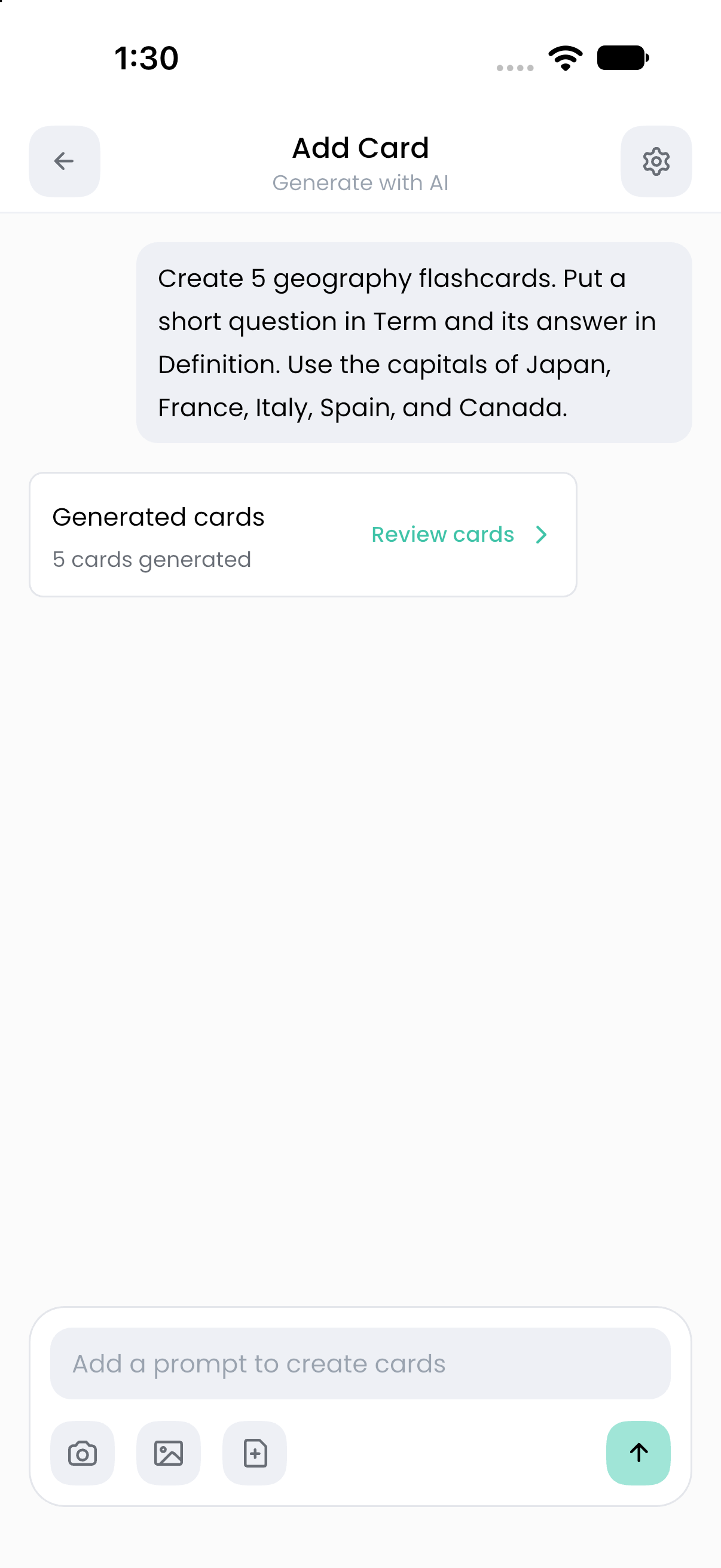
If you see Some cards couldn’t be generated, open the available result and decide whether to save it or request a revised version. You do not have to discard good cards because some were missing. Send is the retry control; there is no separate Continue button.
If you are adding cards while another generation is active, follow the prompt to stop that generation first.
Recover from a save problem
Keep the current flow open while correcting an error. Check that the destination deck still exists and has room for the cards; a deck can hold up to 20,000 cards. If the deck template changed, resolve that mismatch before retrying. Do not confirm discard when you still need the draft.
For failures during generation rather than saving, see sources and AI allowance. For your first generation, see Generate cards with AI.