

Templates and presets
A deck template defines the structure shared by its cards. A template preset is a reusable starting point for creating that structure.
Choose a preset for a new deck
During Create Deck, Select Preset (2/3) presents Presets (Default) and Presets (Custom). Default presets are grouped under Basic, Language, and Specialized.
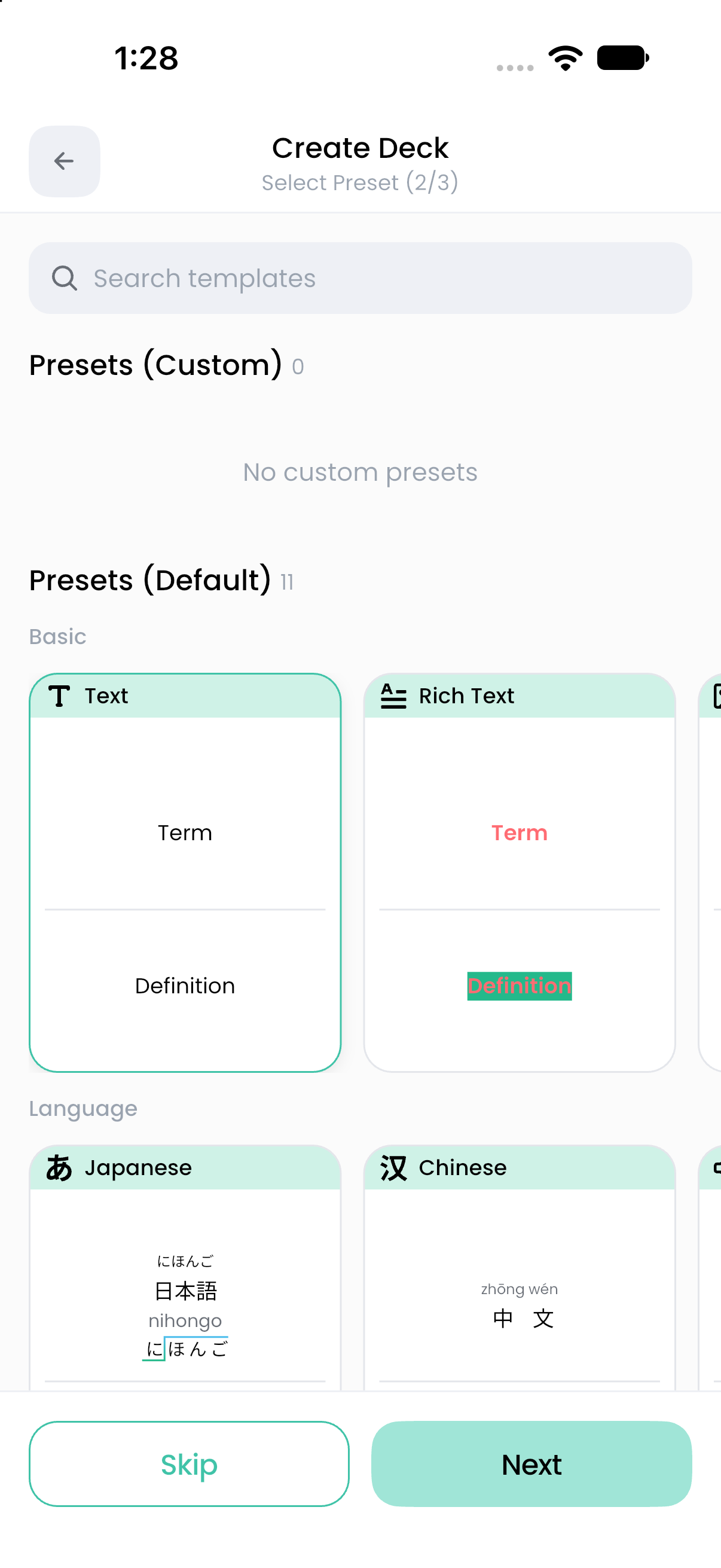
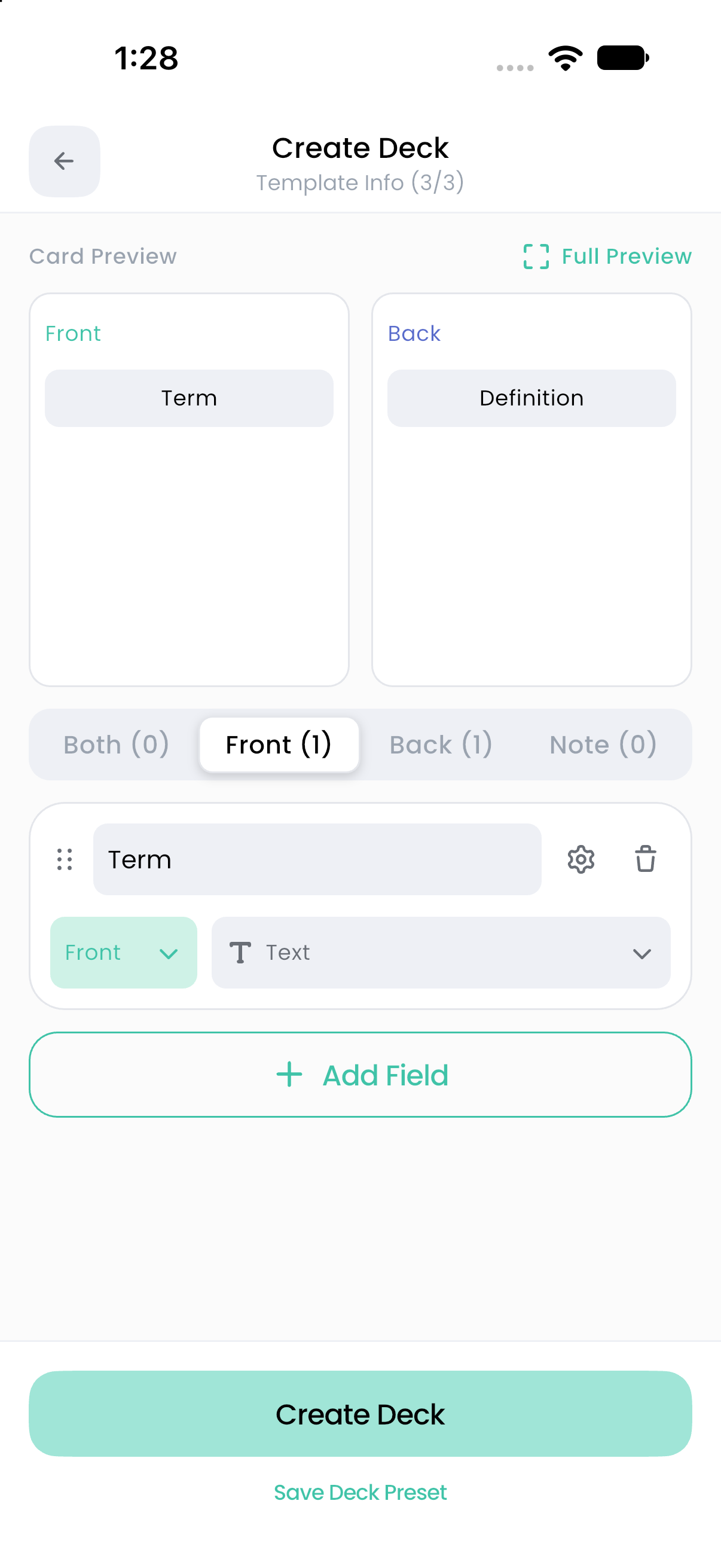
Choose one close to your intended content, then inspect Template Info (3/3). You can change field names, types, placement, order, and settings before creating the deck. The new deck receives its own template rather than staying linked to a shared preset.
Change a deck's template
- Open Deck Detail, tap the gear, then Deck Template.
- Rename fields as needed. Names must be nonblank and unique within the template.
- Use each field's side and type controls to choose Card Side and Field Type.
- Use Add Field for another content field, the reorder controls to change field order, or the gear for detailed settings.
- Inspect the template preview.
- Save and confirm Save template changes?.
The template needs at least one field for the front and one for the back, and can contain up to 20 fields. Both-side fields count toward the faces on which they appear.
Deleting a field deletes its values from every card in that deck. Changing a field's type can also erase values or formatting even when the save succeeds. Export a backup before restructuring a populated deck, and inspect representative cards afterward.
What a field-type change preserves
Text, Chinese, Japanese, TTS, Code, TeX, Cloze, and Rich Text can convert through plain text. Image and Image Occlusion can preserve their shared image. Other conversions cannot preserve the previous content.
Changing the type also resets that template field's settings to the new type's defaults. Malformed stored content can cause a conversion error and prevent saving; that error is different from the deliberate clearing performed by an incompatible conversion.
If only one card needs different display settings, use a card-level override instead.
Save a reusable preset
While creating a deck, use Save Deck Preset on the Template Info step. Enter a unique Deck Preset Name and save it. This saves the structure as a custom preset; use Create Deck separately to finish making the deck.
You can also manage template presets through Settings → Presets → Deck Presets. Use the create control to create a preset, or open an existing custom preset to edit it and use Save Preset.
Default presets can be inspected but cannot be edited. Create a custom preset when you want a reusable variation.
Delete a custom preset
Open the custom preset and use Delete This Preset. This removes it from the preset catalog. Decks previously created from it keep their own templates and cards.
Related: Field type reference, Backups and exports.