

Review a set or folder
An SRS review uses due cards and your daily limits. You do not need to choose individual cards for each session.
Before you begin
Create an SRS set with at least one linked deck. Free-account review credits also need to be available; a credit message is separate from the set's daily limit.
Start and answer
- Open SRS and open the set you want to study.
- Tap Start SRS Review. To study several sets together, open their SRS folder and start its review instead.
- Read the front of the card and try to recall the answer.
- Tap Show Answer.
- Choose a rating using the table below.
- Repeat until the completion screen appears, or leave the session when you need to stop.
Saved answers remain recorded when you leave. A folder session uses each card's own set settings; it does not replace every set's settings with one shared configuration.
For cards already in Review, the scheduler calculates the next interval from the grade and the card's memory history. Choosing Again can move the card into relearning. The interval shown with an answer helps you see the scheduling consequence before grading.
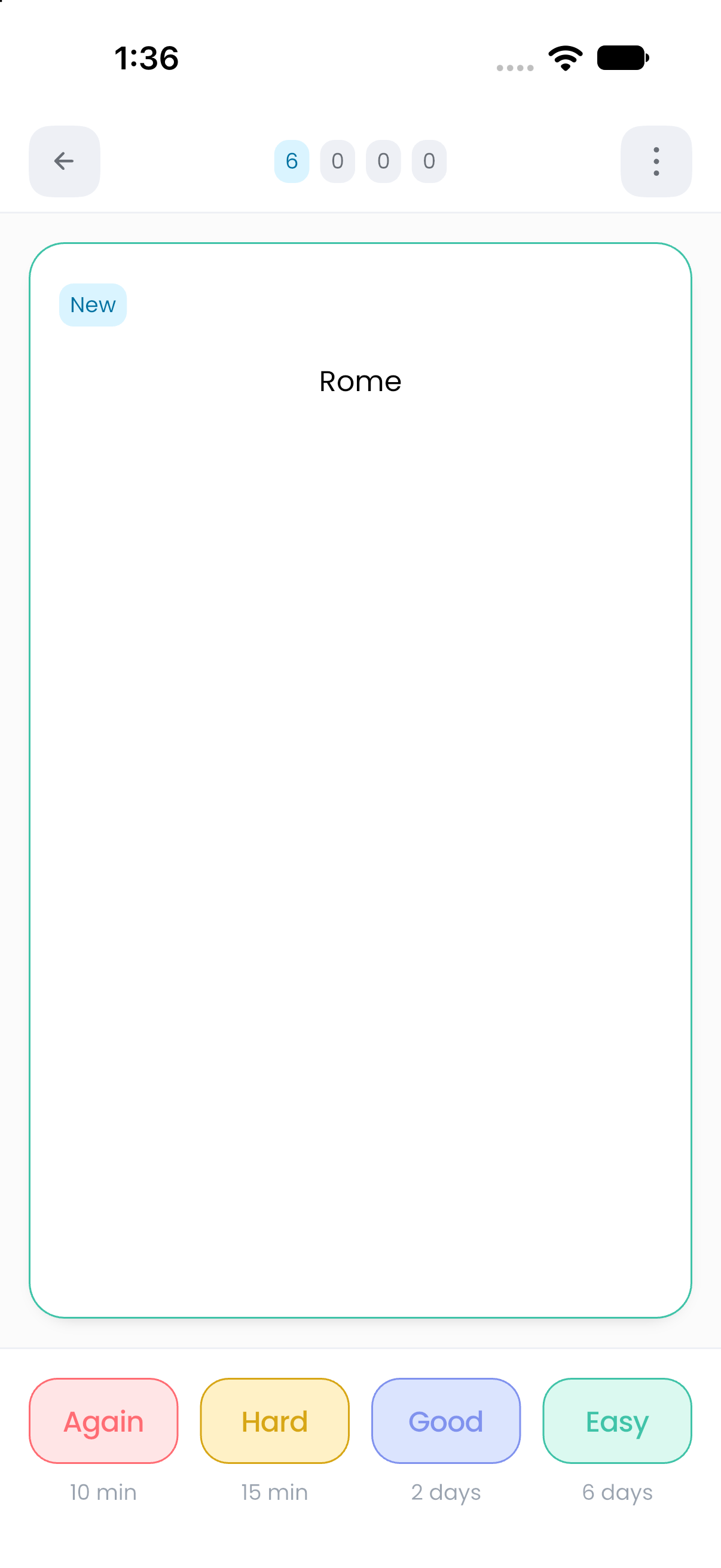
Do not use Hard to mean “I forgot.” Again records a failed recall; Hard is a successful answer.
Two-button reviews
In the set's SRS Set Settings → Review Behavior, Review Button Display can use 4 Buttons or 2 Buttons. Two-button mode shows Again and Good. You can change this without changing the card template.
Correct an answer or edit a card
Open the review action menu to find SRS Card Actions:
- Undo Answer restores the previous answer when undo is available. It can become unavailable after changes that invalidate that previous card state.
- Edit Card opens the same underlying card used in Home. Save the edit before returning to review.
- Hide Tag or Show Tag changes tag visibility for the session, subject to the set's display setting.
- Suspend Card and Disable Card change review availability. Their meanings differ; read Card states and availability.
- Delete Card removes the underlying card and related data, including its presence in the Home deck.
Use availability controls when you want to stop reviewing a card. Delete Card is permanent and affects the original deck.
Auto Advance
The set's Review Behavior page can reveal the answer and move on automatically. Configure Time before showing answer, Time before next card, and If no answer is chosen, mark as: before enabling it.
If you do not choose a grade before the timer ends, the configured automatic grade is recorded. Auto Advance is therefore an answering mode, not a way to browse cards without affecting schedules.
When the session finishes
The completion screen reports reviewed cards, learning time, and accuracy. “Reviews completed!” means the current scheduled work is complete under the applicable limits; it does not mean every card has been learned permanently.
You can return to the set or folder. For additional unscheduled study, open the deck from Home and use its practice modes.
If you expected more cards, check Daily limits, Scheduling, and Troubleshooting.