

Back up and restore your collection
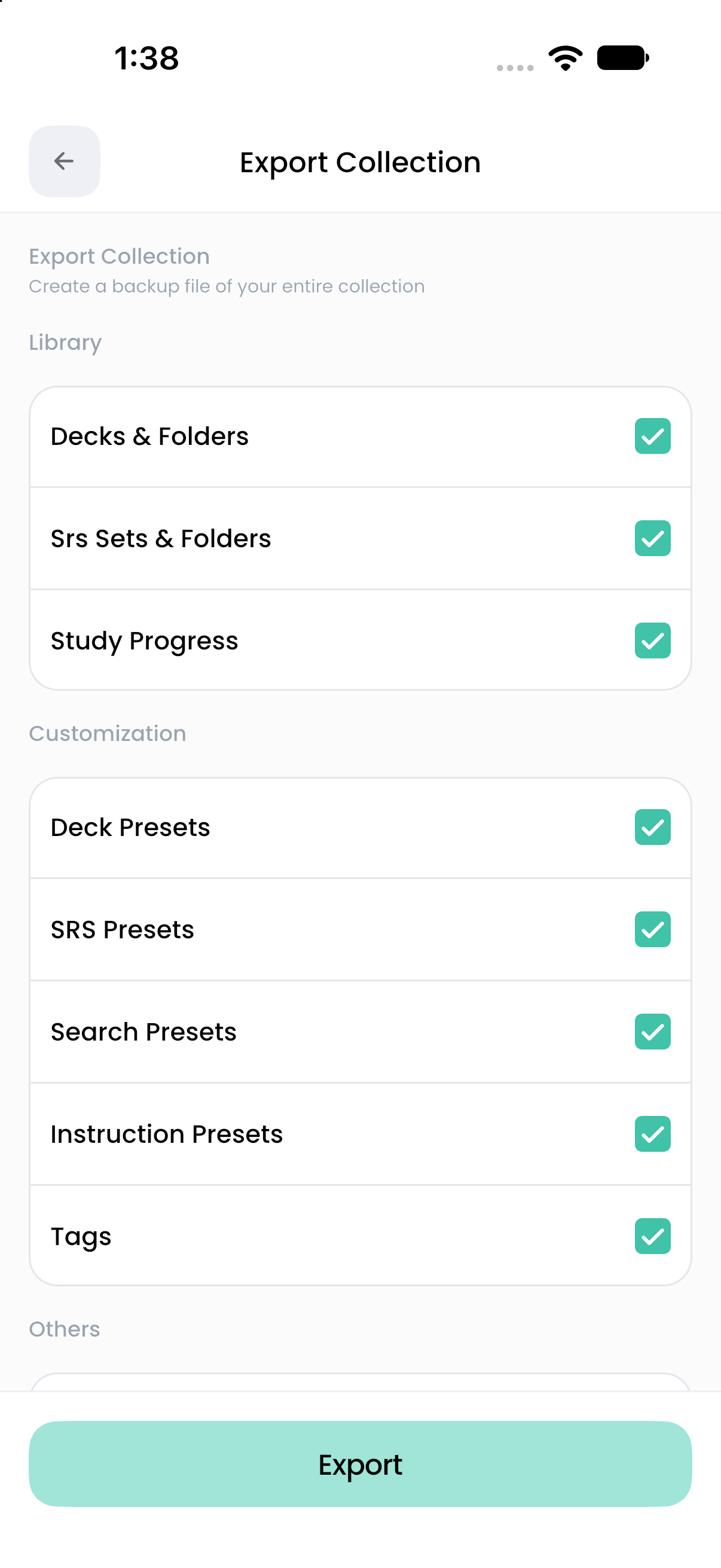
Export Collection creates a .flashnerd archive of the categories you select. Save it outside the app so you can recover your study data or move it to another device.
Create a full backup
- Open Settings and select Export Collection under Data.
- Leave all categories selected for a full collection backup.
- Check that Decks & Folders, Srs Sets & Folders, and Study Progress are selected if you want to retain scheduling and history.
- Tap Export.
- In the device's share sheet, save the file to a location you can find later, such as a file-storage app. Confirm that the file was actually saved before leaving.
The share sheet offers destinations available on your device. Dismissing it does not ensure that you saved a backup. Keep a dated copy before bulk edits, overwriting imports, or moving devices.
What each category contains
The app keeps dependent selections consistent. Selecting SRS sets also requires decks; selecting Study Progress requires both. Search presets may require the decks and tags they reference. If another checkbox changes when you toggle an option, review the selections before export.
A collection backup does not contain sign-in credentials, AI conversations, unsaved AI drafts, or accepted AI generation requests. Add generated cards to a deck before exporting if you want those cards included.
Restore or move to another device
- Keep the original backup in a safe location and transfer a copy to the destination device.
- Sign in to Flashnerd on the destination. If it already contains valuable data, export that collection first.
- From Home or SRS, open the create menu, choose Import, and select the Flashnerd archive.
- Decide whether to enable Override existing. Use an independent copy when you do not want to update matching records; use override only when that update is intended.
- In the preview, turn on Include study progress to restore the available schedules/history. This option starts off, even when the archive contains progress.
- Complete the import, then inspect decks, SRS sets, media, presets, and settings.
Do not remove the original backup or old installation until you have checked the restored collection. Appearance settings in a backup can change the destination's theme or language when imported.
Back up only part of your collection
Use a Home deck/folder export for content sharing. Home exports do not include SRS. To preserve a set and its progress, export from the SRS tab and include study progress, or use Export Collection. See Export and share for the differences.
If restoring reports missing references or invalid data, keep the original file, read import troubleshooting, and avoid editing archive contents without a verified copy.