> For AI agents: the complete documentation index is available at https://docs.flashnerd.com/llms.txt, the full documentation bundle is available at https://docs.flashnerd.com/llms-full.txt.
# Start spaced repetition
Use an **SRS set** when you want Flashnerd to decide when to show a card again. Your answers update each card's schedule. Use the practice modes in **Home** when you want an unscheduled session instead.
## How spaced repetition works
Spaced repetition spreads reviews over time. Recall can fade between reviews; revisiting a card helps reinforce what you learned. As you recall it successfully, you can often wait longer before the next review.
Flashnerd uses **FSRS** to update each card's schedule from its review history, your answer grade, and the set's settings. Try to recall the answer, reveal it, then grade honestly. If you forget, choose **Again**; the card can return sooner through relearning steps. Actual intervals vary and do not always increase.
Illustrative days and percentages. Mint curves show spaced reviews; gray continuations show decline without another review. Actual timing and recall vary by card.
See [Answer grades](https://docs.flashnerd.com/guide/srs/reviewing.md#start-and-answer) and [Scheduling settings](https://docs.flashnerd.com/reference/srs/scheduling.md).
## Before you begin
Sign in and create a deck containing a few cards. If you have not done that yet, follow [Your first study session](https://docs.flashnerd.com/guide/getting-started/getting-started.md).
## Decks and SRS sets
| Item | What it contains |
| -------------- | --------------------------------------------------------------------------------------------------------------- |
| **Deck** | The cards, their content, and their template. Find it in Home. |
| **SRS set** | Links to one or more decks, their spaced-repetition schedules, and settings for reviewing them. Find it in SRS. |
| **SRS folder** | A way to organize sets and review a group of sets together. |
Linking a deck does not create a separate copy of its cards. Editing a linked card changes the same card you see in Home. **A deck can belong to only one SRS set.**
For example, put your _Travel vocabulary_ and _Useful sentences_ decks in a _Travel practice_ set. They retain their individual card templates but use the set's SRS settings.
## Create a set
1. Open **SRS** and tap the add button.
2. Choose **Create Set**.
3. In **Set Info (1/2)**, enter a **Set Name**.
4. Choose a **Parent Set Folder**, or leave **None** selected to place the set at the top level, **SRS Home**.
5. Choose **SRS Settings**. Start with **Default** unless you already have a preset you want to use.
6. Tap **Next**.
7. In **Deck Info (2/2)**, tap **Add Deck**, select your decks, and confirm the selection. Folders help you find decks; only the decks are linked.
8. Review the selected deck list and tap **Create SRS Set**.
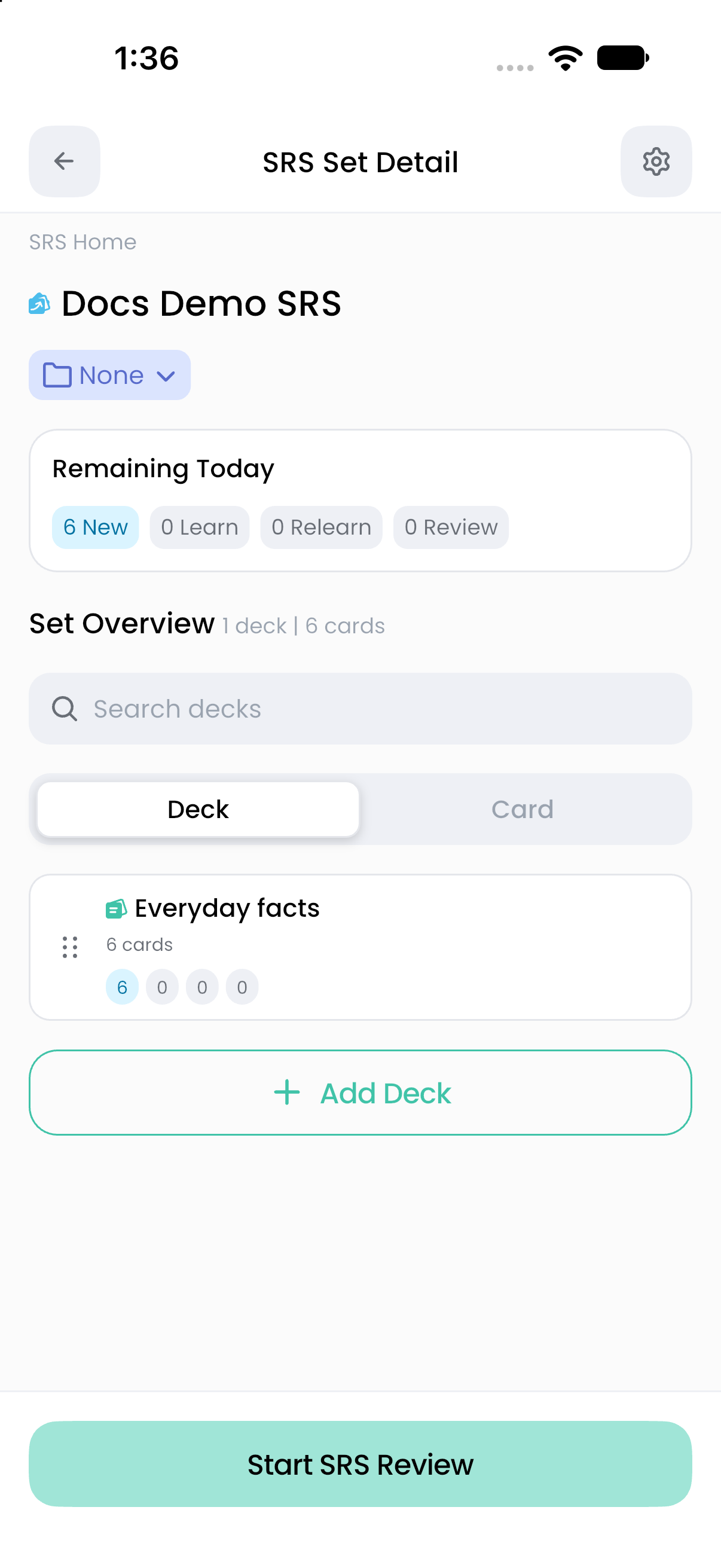
The new set appears in SRS. Open it to see its decks and cards, then tap **Start SRS Review**.
The set links your saved deck and shows the cards available for scheduled study today.
:::tip A deck is unavailable for selection
It may already be assigned to another set. Use the existing set's linked-deck move action to transfer it while retaining progress. Unlinking instead removes its associated SRS statistics. Read [Manage sets and linked decks](https://docs.flashnerd.com/guide/srs/manage-sets.md) before changing membership.
:::
## Understand Remaining Today
**Remaining Today** reflects cards currently available under the set's schedule and daily limits. It is not the total number of cards you own. A large deck can have a small remaining count because cards are due later, new-card limits have been reached, or some cards are disabled.
The default settings introduce up to **15 new cards per study day**, allow **150 daily review admissions**, and include **0 suspended cards**. Existing presets or imported settings may use different values. See [Daily limits](https://docs.flashnerd.com/reference/srs/daily-limits.md).
## Your first review
Try to recall the answer before tapping **Show Answer**. Then choose the grade that describes your recall. Flashnerd records the answer and schedules the card again; a short learning step can bring it back within the same session.
Continue with [Review a set or folder](https://docs.flashnerd.com/guide/srs/reviewing.md) for answer buttons, undo, and session completion.