> For AI agents: the complete documentation index is available at https://docs.flashnerd.com/llms.txt, the full documentation bundle is available at https://docs.flashnerd.com/llms-full.txt.
# Create and edit cards
Each card uses the fields in its deck's template. A field can hold plain text, formatted text, an image, speech, a recording, or another supported content type.
## Add a card manually
You need an existing deck with a valid template.
1. Open the deck from **Home**.
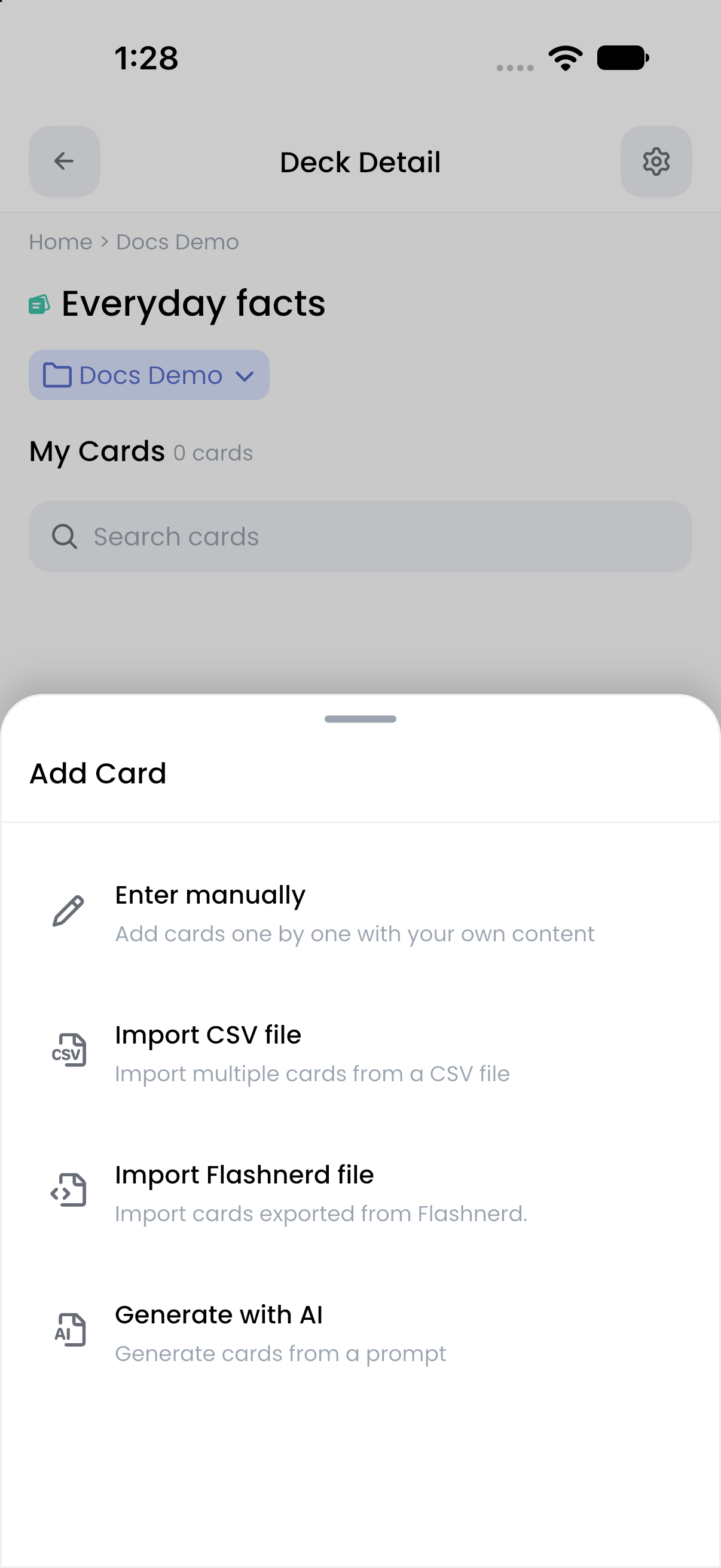
2. Tap **Add Card → Enter manually**.
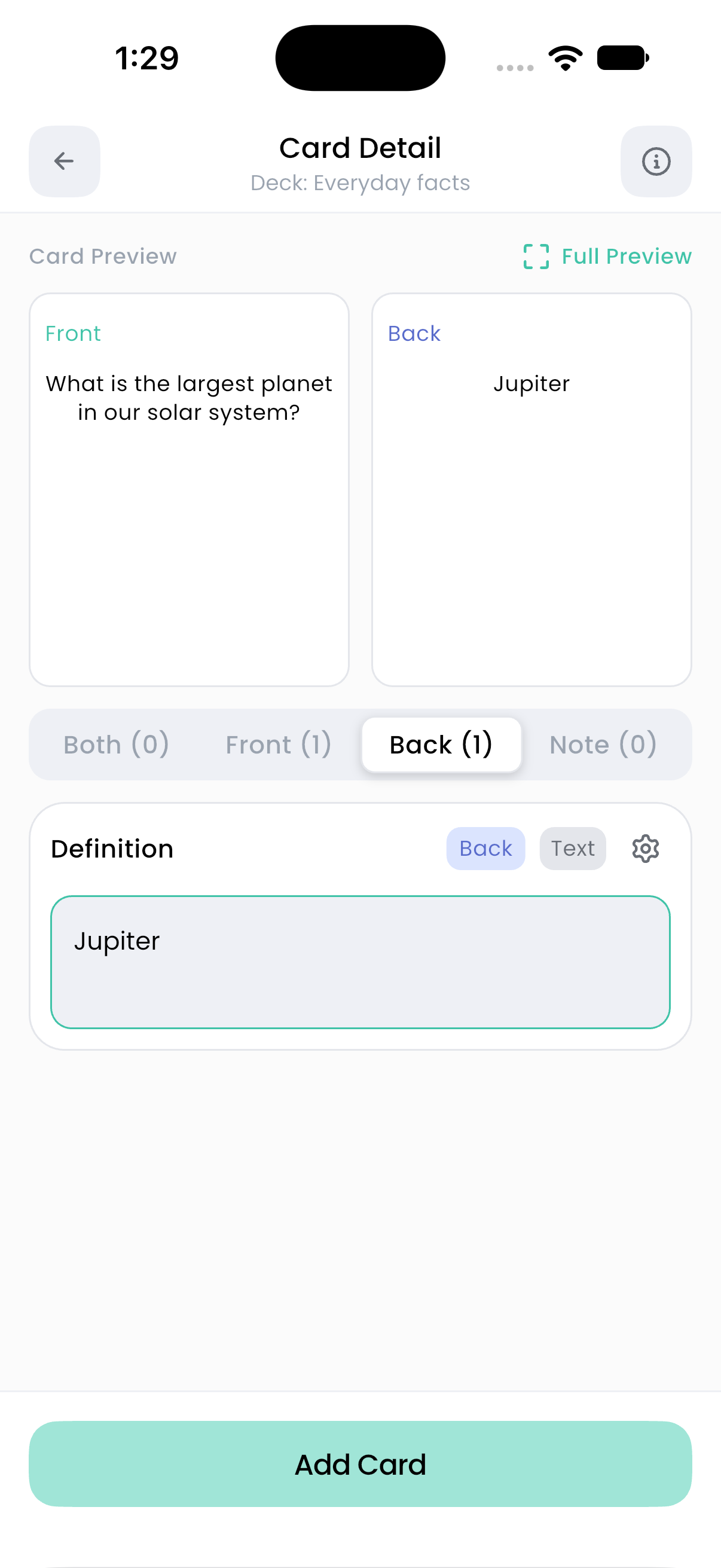
3. Fill in the fields on **Card Detail**. Check each field's side and type badges rather than assuming its name determines where it appears.
4. Use **Card Preview** and **Full Preview** to inspect the question and answer.
5. If needed, open the info button to add [tags](https://docs.flashnerd.com/guide/library/tags.md).
6. Tap **Add Card** to save the card to the deck.
Enter the question and answer, then inspect the preview before adding the card.
For a simple vocabulary card, put a word in a front-side Text field and its meaning in a back-side Text field. Keep the answer short enough to judge whether you recalled it correctly.
## Edit an existing card
1. Open the card from the deck's **My Cards** list or a Search result.
2. Change its content. The field gear opens settings for that field on this card.
3. Preview both faces, then tap **Save**.
Editing from an SRS view edits the underlying card too. It does not create a separate SRS-only copy of its content.
## Preview notes and hidden fields
**Front** and **Back** are the question and answer faces. **Both** fields appear on both faces. **Note** fields hold supplementary information accessible through the notes control rather than a separate front/back question.
A field marked **Hidden** remains in the card's saved content and editor but is omitted from normal card displays. Check field settings if content is saved but seems to be missing in the preview.
See [Field settings and card sides](https://docs.flashnerd.com/guide/cards/field-settings.md) for the distinction between hiding a field, changing its side, and deleting it.
## Other ways to add cards
The **Add Card** sheet also offers **Import CSV file**, **Import Flashnerd file**, and **Generate with AI**. These workflows let you inspect prepared cards before adding them. A generated or imported draft is not a saved deck card until you complete its add action.
Choose how to prepare cards for the current deck.
Learn about [AI generation](https://docs.flashnerd.com/guide/ai/generate-cards.md) or [imports and backups](https://docs.flashnerd.com/guide/import-export/backups.md). A deck can contain up to **20,000 cards**; if an addition exceeds that limit, use another deck or reduce the addition.
## Delete a card
Open **Card Info** and use **Delete This Card**, then read and confirm the deletion. Review sessions also expose **Delete Card** in their action menu.
Deletion removes the base card permanently, including its related SRS data when it is linked to scheduled study. If you only want to stop scheduling a card, use the appropriate [SRS controls](https://docs.flashnerd.com/guide/srs/getting-started.md) instead. Export a backup before large cleanup operations.